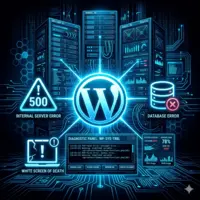
When a WordPress installation breaks, the impact is immediate: pages stop loading, customers cannot check out, and the admin panel becomes unreachable. A structured approach to WordPress error fixes is the fastest way to restore stability and prevent the same failures from happening again. Most malfunctions look dramatic, but with the right workflow you can identify the root cause in minutes.
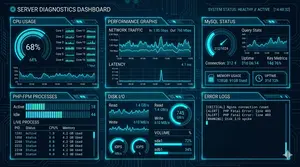
1. Why WordPress Errors Occur
WordPress runs on several layers: PHP, themes, plugins, the database, and the underlying server environment. When one of these layers becomes unstable, errors appear. Many common WordPress problems originate from plugin conflicts, outdated PHP versions, or misconfigured hosting.
Most failures fall into these categories:
- PHP failures (fatal errors, syntax issues, deprecated functions)
- Plugin or theme conflicts
- Database connection failures
- Incorrect file permissions
- Resource exhaustion (RAM, CPU, I/O)
- Corrupted core files
A solid WordPress troubleshooting workflow always begins by identifying which layer is failing.
2. Fixing the 500 Internal Server Error
The 500 error is one of the most frequent WordPress malfunctions. It indicates a backend failure, usually at the PHP or server level.
Common causes
- Fatal PHP failures
- Plugin conflicts
- Corrupted
.htaccess - Low PHP memory
- Incompatible PHP version
How to fix it
1. Check the error log
The log reveals the exact file and line causing the crash.
2. Disable plugins
Rename the plugins folder. If the site loads, the issue is plugin-related.
3. Regenerate .htaccess
Delete it and save permalinks again.
4. Increase memory limit
define('WP_MEMORY_LIMIT', '256M');
5. Verify PHP version
Some extensions break on PHP 8+, others require it.
3. Fixing the White Screen of Death
The white screen appears when PHP encounters a fatal error or runs out of memory. It often happens after updates or new plugin installations.
How to fix it
Enable debugging
define('WP_DEBUG', true);
define('WP_DEBUG_LOG', true);
define('WP_DEBUG_DISPLAY', false);
Disable the last installed plugin
Most white screens occur immediately after an update.
Switch to a default theme
If the site loads, the theme is the cause.
Increase memory
Same fix as the 500 error.
4. WordPress Stuck in Maintenance Mode
When an update fails, WordPress may remain stuck in maintenance mode.
Fix:
Delete the .maintenance file from the root directory.
5. Fixing “Error Establishing a Database Connection”
This failure means WordPress cannot communicate with the database. It is one of the most disruptive issues because the entire site becomes inaccessible.
Common causes
- Incorrect DB credentials
- MariaDB/MySQL service down
- Corrupted tables
- Too many connections
How to fix it
1. Check wp-config.php
Verify DB name, user, password, and host.
2. Restart MariaDB/MySQL
systemctl restart mariadb
3. Repair tables
mysqlcheck --repair --all-databases
4. Check max connections
High-traffic sites may exceed max_connections.
6. Fixing Login Page Refresh Loops
This loop occurs when WordPress cannot authenticate the session.
How to fix it
- Clear cookies
- Regenerate salts
- Disable security plugins
- Check file permissions
7. Fixing Images Not Loading
Broken images are often caused by permission issues or incorrect rewrite rules.
How to fix it
- Set
uploadsfolder to 755 - Disable hotlink protection
- Check rewrite rules
8. Diagnosing Plugin and Theme Conflicts
Conflicts are the most common source of WordPress malfunctions. With thousands of extensions available, incompatibilities are inevitable.
How to diagnose conflicts
- Disable all plugins
- Re-enable them one by one
- Switch to a default theme
- Check the browser console for JS errors
If the issue is related to slow loading times, read the guide on WordPress Performance Optimization to understand how server settings affect speed.
9. Fixing File Permission Errors
Incorrect permissions can break uploads, updates, and basic functionality.
Recommended permissions
folders: 755
files: 644
wp-config.php: 600
10. Server-Level Failures
Sometimes the problem is not WordPress at all — it’s the hosting environment.
Common server-level failures
- PHP-FPM saturation
- High CPU usage
- Disk I/O bottlenecks
- Insufficient RAM
- Misconfigured Nginx/Apache
For PHP-FPM tuning, follow the PHP-FPM Configuration Guide.
For CPU spikes, the High CPU Usage VPS Diagnosis tutorial provides a complete workflow.
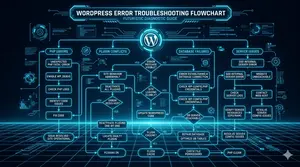
FAQ: WordPress Error Fixes
Why do WordPress errors happen so often?
Because the platform relies on multiple layers working together. When one layer becomes outdated or overloaded, failures appear.
What is the fastest way to diagnose a WordPress error?
Enable WP_DEBUG and check the error_log. For server-level problems, inspect PHP-FPM and Nginx/Apache logs.
How do I fix a 500 Internal Server Error?
Check the log, disable plugins, regenerate .htaccess, increase memory, and verify the PHP version.
Why does WordPress show a white screen?
It is caused by fatal PHP failures or memory exhaustion.
How do I fix “Error Establishing a Database Connection”?
Verify credentials, restart the database service, and repair corrupted tables.
Can server issues cause WordPress errors?
Yes. PHP-FPM saturation, CPU spikes, disk bottlenecks, and low RAM can all trigger failures.
Conclusion
Most WordPress malfunctions look catastrophic at first, but with the right WordPress error fixes workflow, they can be resolved quickly and safely. A structured diagnosis prevents downtime and keeps your installation stable. Whether you’re managing a small blog or a high-traffic WooCommerce store, mastering these fixes ensures a reliable and secure environment.